Wedding websites

Build a wedding website that changes on the day.

A wedding website has three jobs: look like your wedding, tell you who is coming, and give guests what they need on each day. In Pragte you design it yourself, with a phone layout of its own. The RSVP asks every guest’s name. And the same link becomes the day’s schedule, then a thank-you, on dates you set. It’s free to build and publish, with no expiry date.

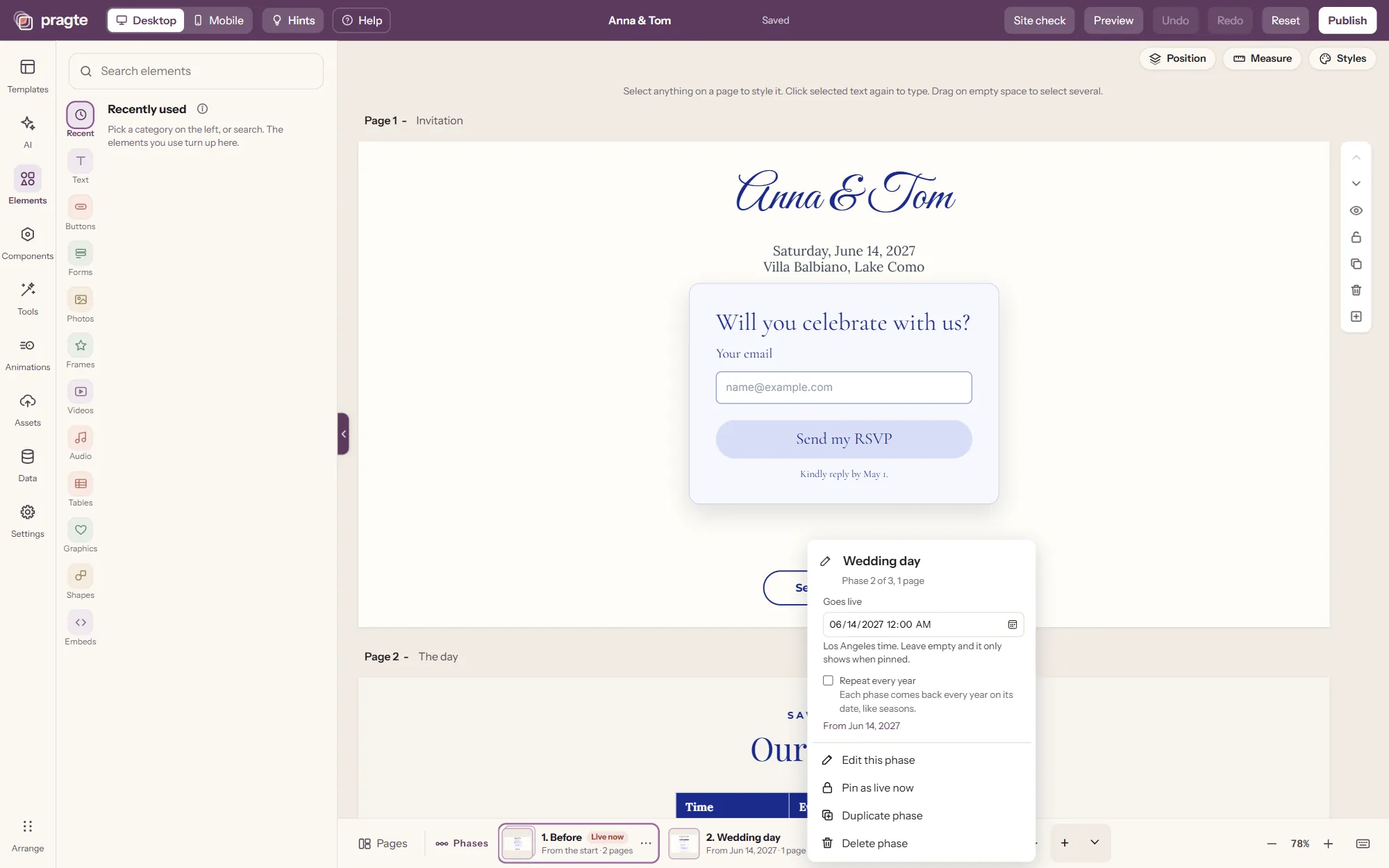
The Pragte editor with a sample wedding site. Along the bottom, its phases: Before, Wedding day and After, with the Wedding day menu open: it goes live on June 14, 2027 at midnight, in the site’s time zone.
The Pragte editor. Each phase along the bottom is a version of the whole site, with the date it goes live.

Wedding website examples to start from.

Each is a whole site with its three phases made: the invitation, the day and the thank-you. Preview it as your guests would see it, then change anything.

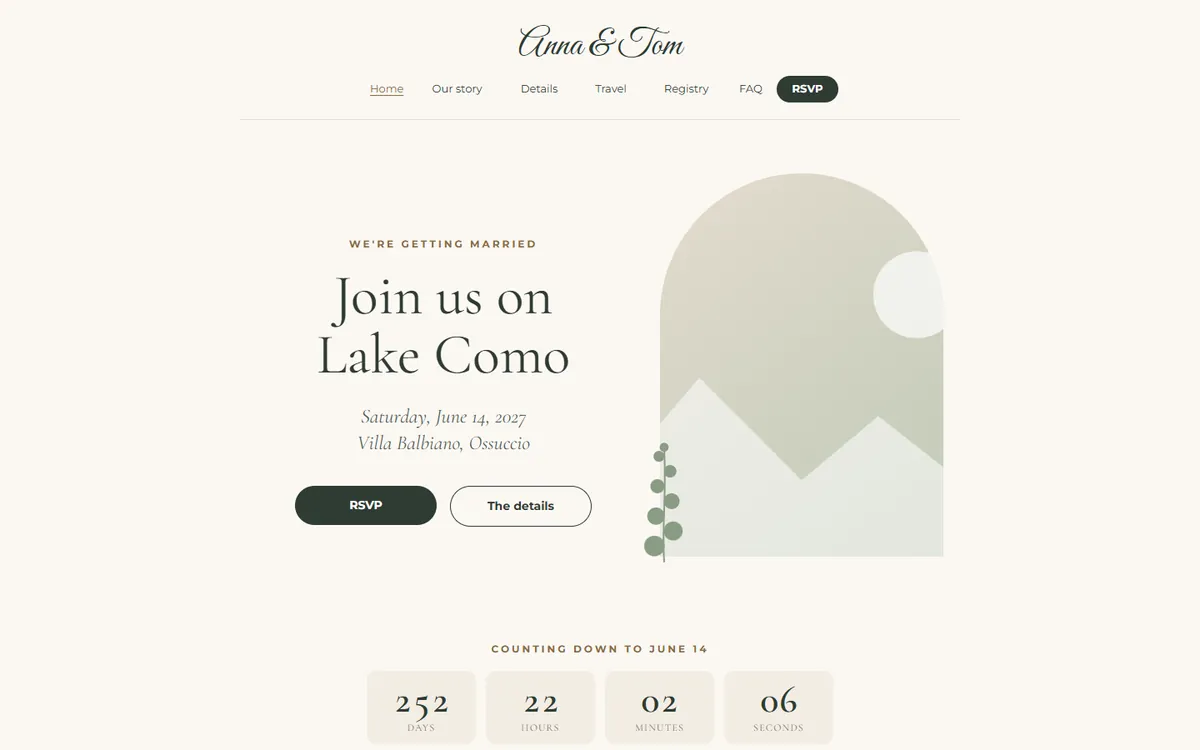
  • The Lakeside template’s first page on a computer.

    Lakeside

    A complete wedding site: your story, travel and RSVP, then the day's schedule and guest photos, then a thank-you.

    13 pages, 3 phases

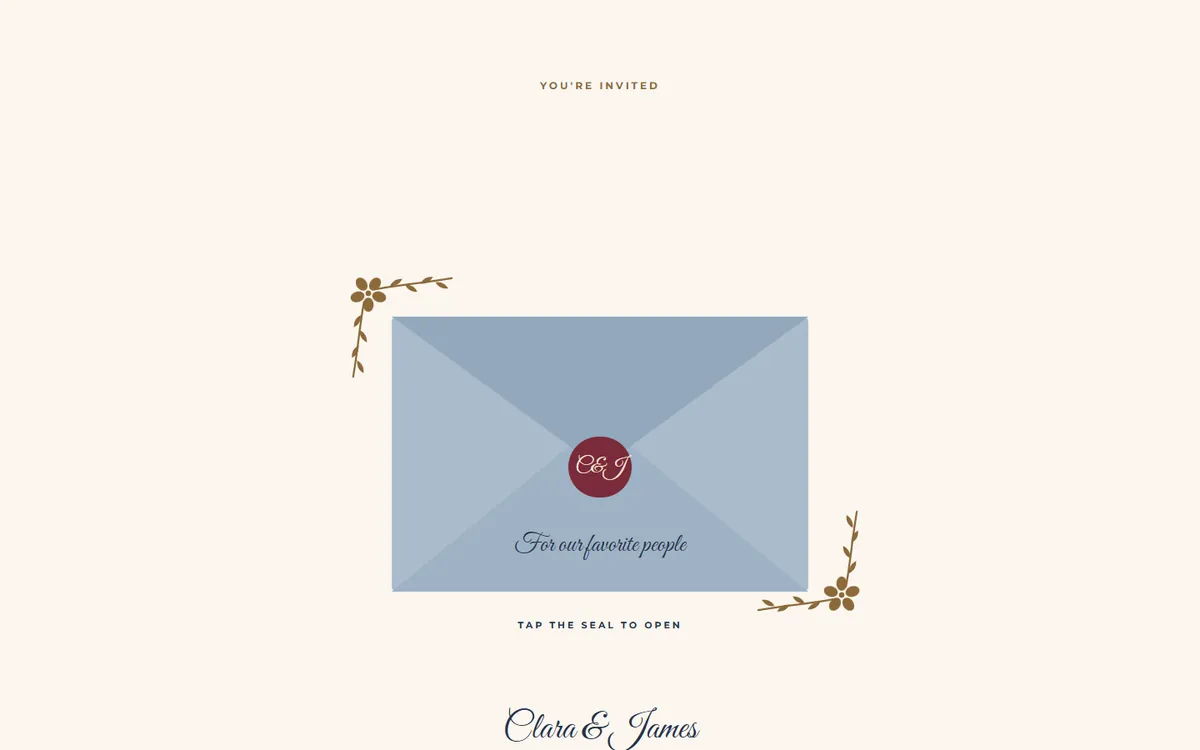
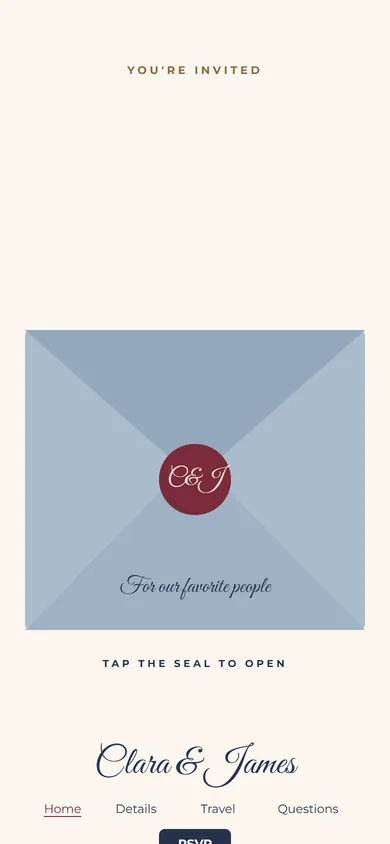
  • The Envelope template’s first page on a computer.

    Envelope

    Opens as a sealed envelope. Guests tap the seal and the invitation slides out.

    11 pages, 3 phases

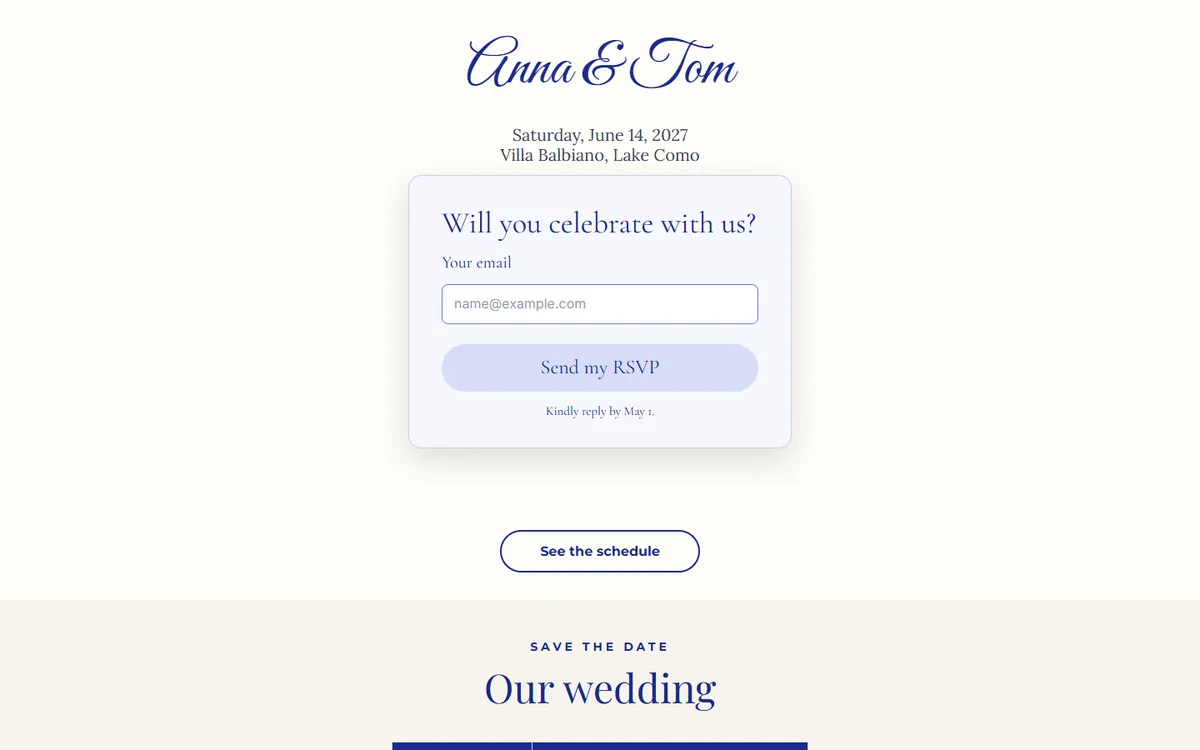
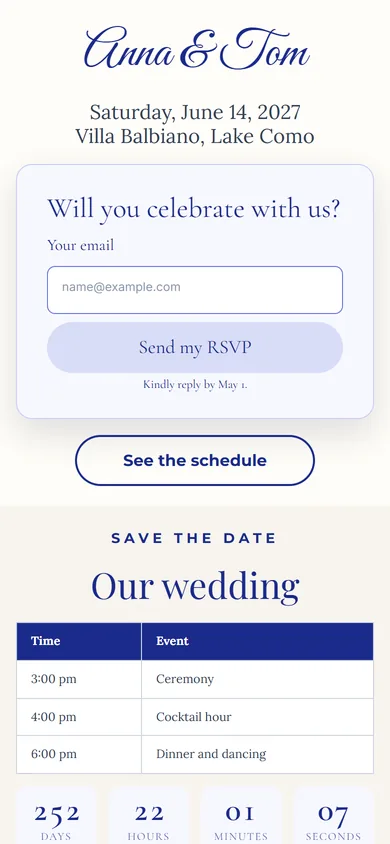
  • The Invitation template’s first page on a computer.

    Invitation

    A short one: an invitation with RSVP, the schedule, guest photos and a thank-you.

    4 pages, 3 phases

How to build your wedding website, step by step.

Seven steps, with screenshots of the editor as it is today.

  1. 1

    Start from a template or a blank page

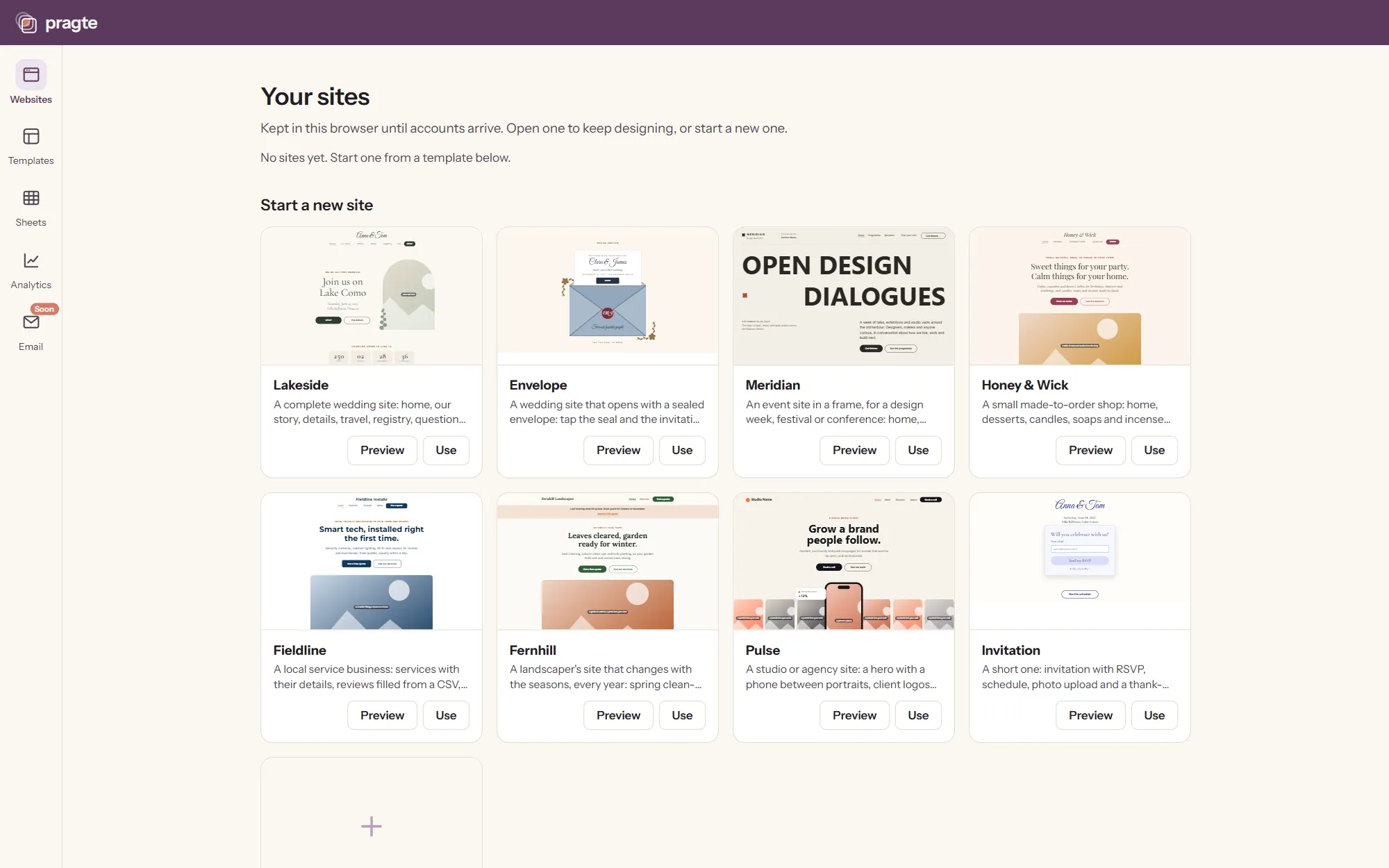
    On Your sites, Start a new site offers the wedding templates and a blank page. Pick the one closest to what you have in mind: everything on it can be changed.

    Your sites in Pragte: Start a new site, with a card for each template, among them Lakeside, Envelope and Invitation for weddings, and a blank site.
  2. 2

    Place your invitation on the desktop layout

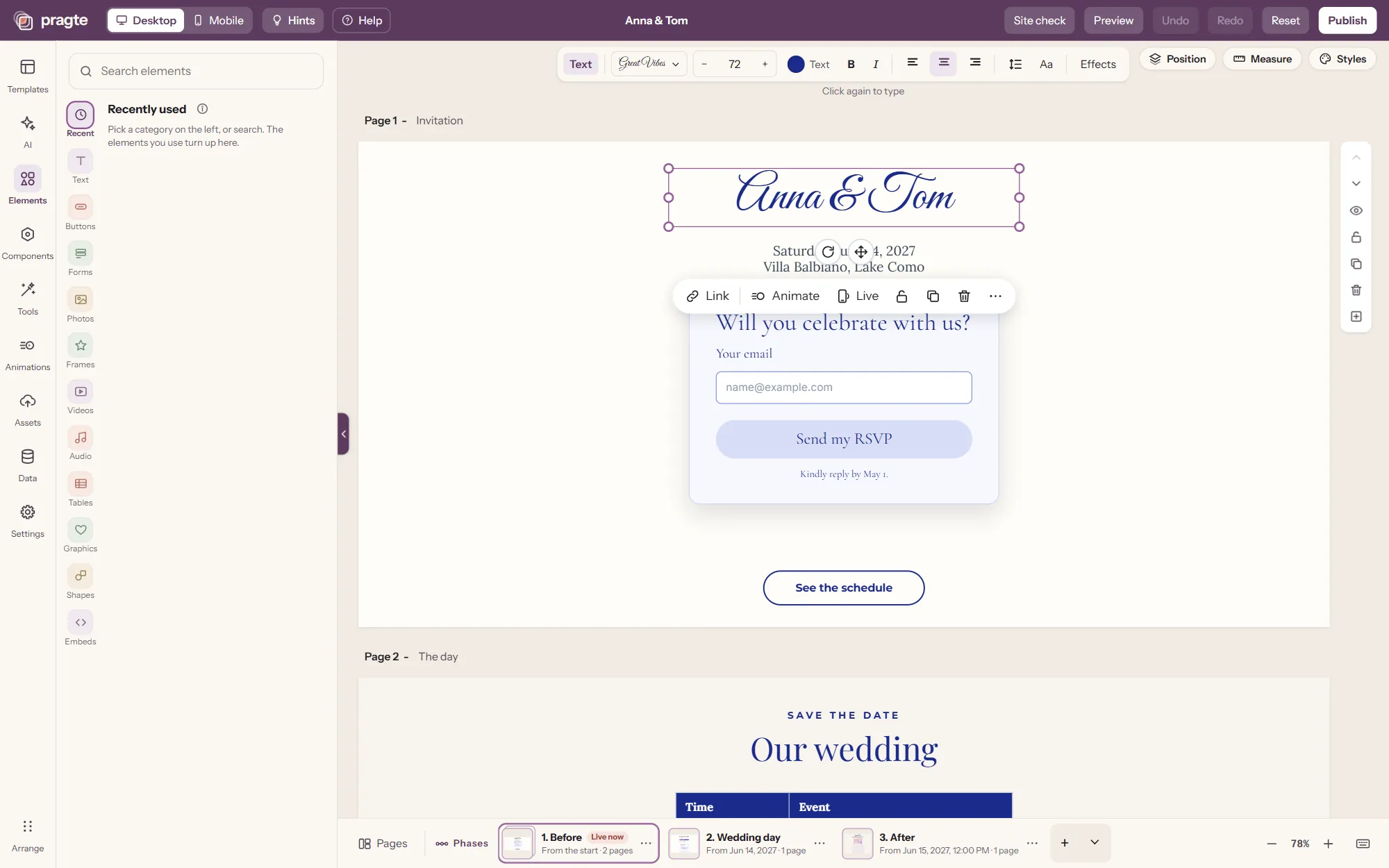
    Click anything, and the toolbar shows what it can change: here, the names’ font, size and colour. Drop in your photos, or the invitation itself as a picture. Designed it in Canva? The AI in the editor can rebuild a page from a screenshot, as words and shapes you can edit.

    The Pragte editor with a sample invitation. The names, Anna and Tom, are selected, and the toolbar shows their font, size and colour.
  3. 3

    Arrange the phone layout

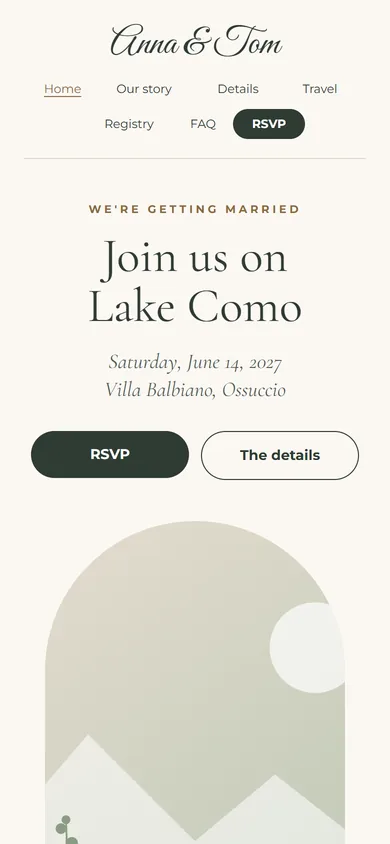
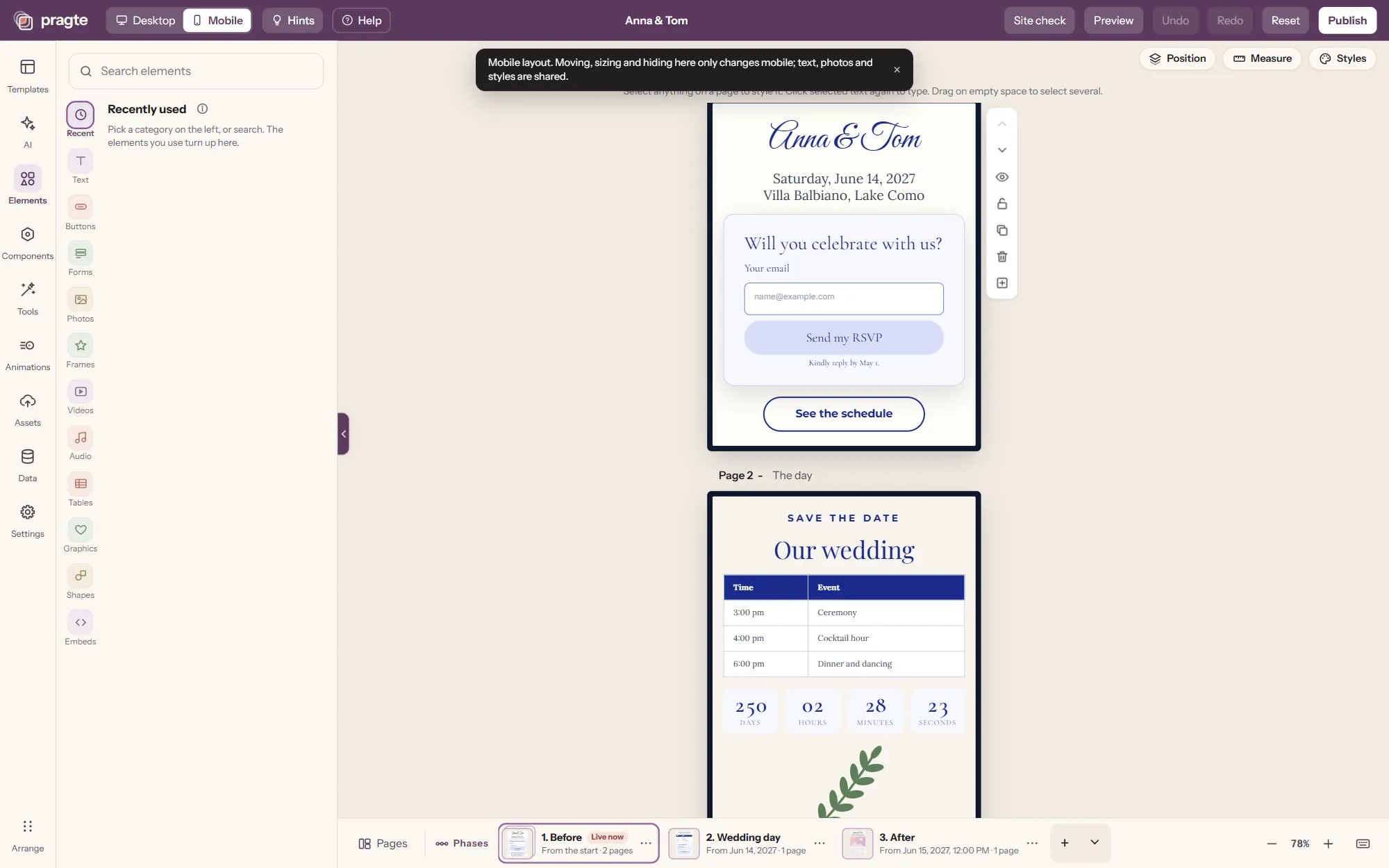
    Switch to Mobile at the top. The words and photos are the same, but where they sit is up to you: moving, sizing or hiding something here changes only the phone version. Most guests will only ever see this one.

    The editor in its Mobile layout: the invitation and the next page, each in a phone-shaped page, with a note that changes here only affect mobile.
  4. 4

    Add the RSVP and choose its questions

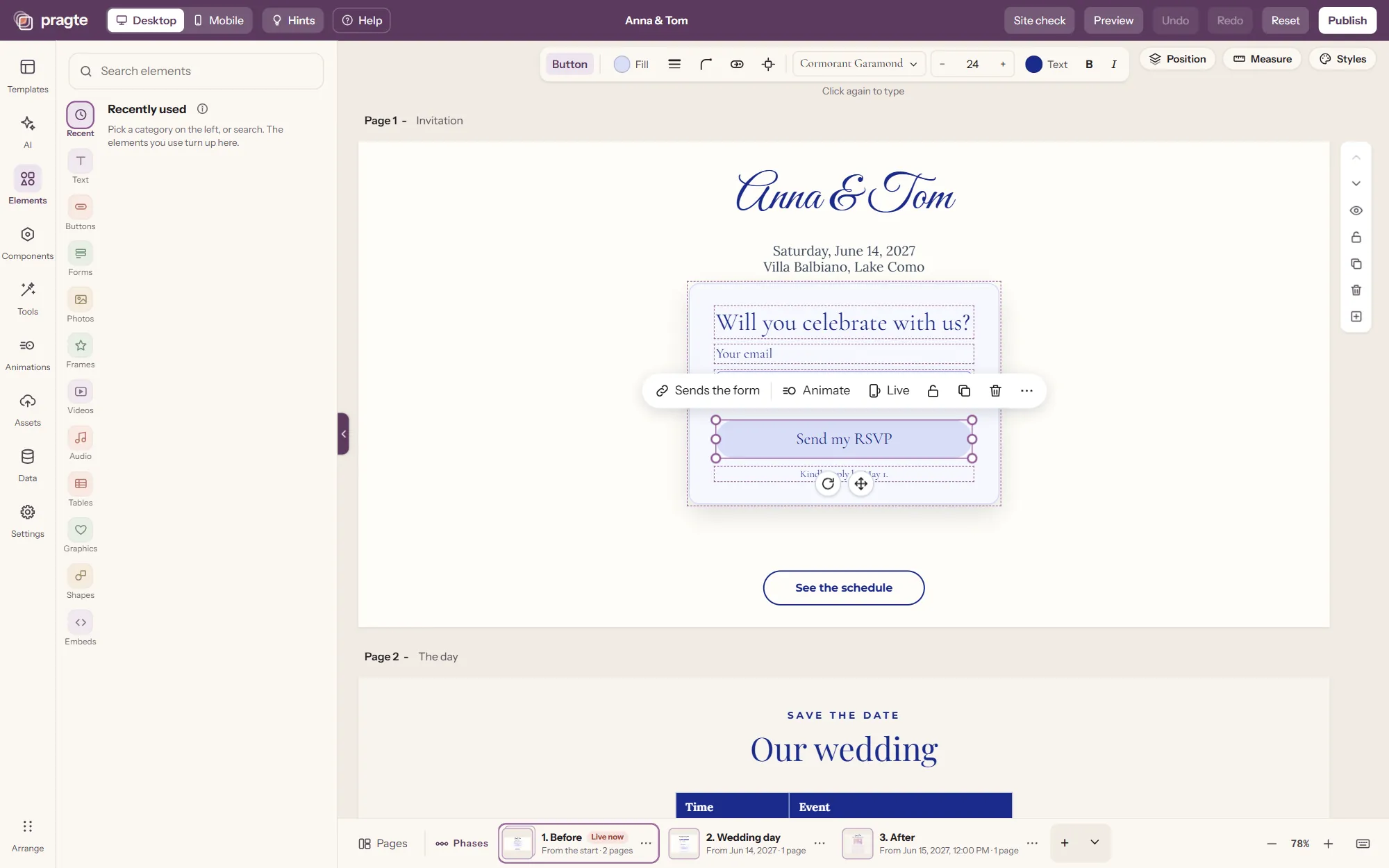
    In Elements, Forms, add the ready-made RSVP. It asks for Name, Email and Attending, each required. Add whatever else you need to know: meal choices, plus-ones, a song for the dance floor.

    An RSVP form on the sample invitation, with its Send my RSVP button selected, and the button’s own fill, border and font in the toolbar.
  5. 5

    Prepare the day and the day after

    Along the bottom of the editor are the phases: Before, Wedding day and After. Give each its date in its menu, then fill its pages: the schedule and a table search for the day, a thank-you for after.

  6. 6

    Publish

    Choose your address, such as anna-tom.pragte.site, and whether the site is public or behind a password.

  7. 7

    Share the link

    Send it by message or email, or print its QR code on your invitations: Settings, Share your site, has it to download.

Everything a wedding website needs.

Each part works as soon as you add it, and looks like the rest of your design.

RSVP

Your questions, in your design, with every field and button styled on its own. The ready-made RSVP asks for each guest’s name, email and whether they are coming, all required, so no RSVP arrives without a name. Every submission lands in one list you can download as a spreadsheet, and on a paid plan you get an email for each one. When your date to answer by passes, close the form from your phone.

Building on Canva? Canva’s help says website form responses are always anonymous, so add a question for the name. Canva and Pragte compared.
Seating

A table search, not a chart to zoom into: a guest types their name and sees their table. It reads a list of names and tables you paste or import into Sheets, and sits on the day’s pages, so it appears that morning.

Pragte doesn’t draw a floor plan. Print one from the same list for the door: it is still what people read while they queue. How guests find their table online.

Guest photos

Guests scan a QR code and send photos from their phone, with no app and no account. You approve what appears on the photo wall, or let photos through at once. Each one is made smaller on the guest’s phone before it uploads, which leaves the location stored in the file behind.

Photos only, not videos, and no download of guests’ photos yet.

Countdown

Days, hours, minutes and seconds to the wedding, in your fonts and colours. On the day, the next phase takes over.

Guestbook

A ready-made form for notes from your guests. Show the ones you approve on a wall on the site, or keep them for yourselves.

Password

Any site, free or paid, can be public or behind a password. Free sites aren’t listed in search engines, so guests reach yours through your link or QR code.

Live from your phone

On the day, switch the phase early, post a notice to every guest, close the RSVP, or change words you marked as live, such as where to go now.

Phone layout

A layout of its own, arranged by you, not the desktop design squeezed onto a phone. Step 3 shows it.

One link, three versions of your site.

The address on your save the date is the one guests still type the week after. In Pragte each stage is a phase: a version of the whole site with its own pages, live from a date you set. You prepare all three before the wedding.

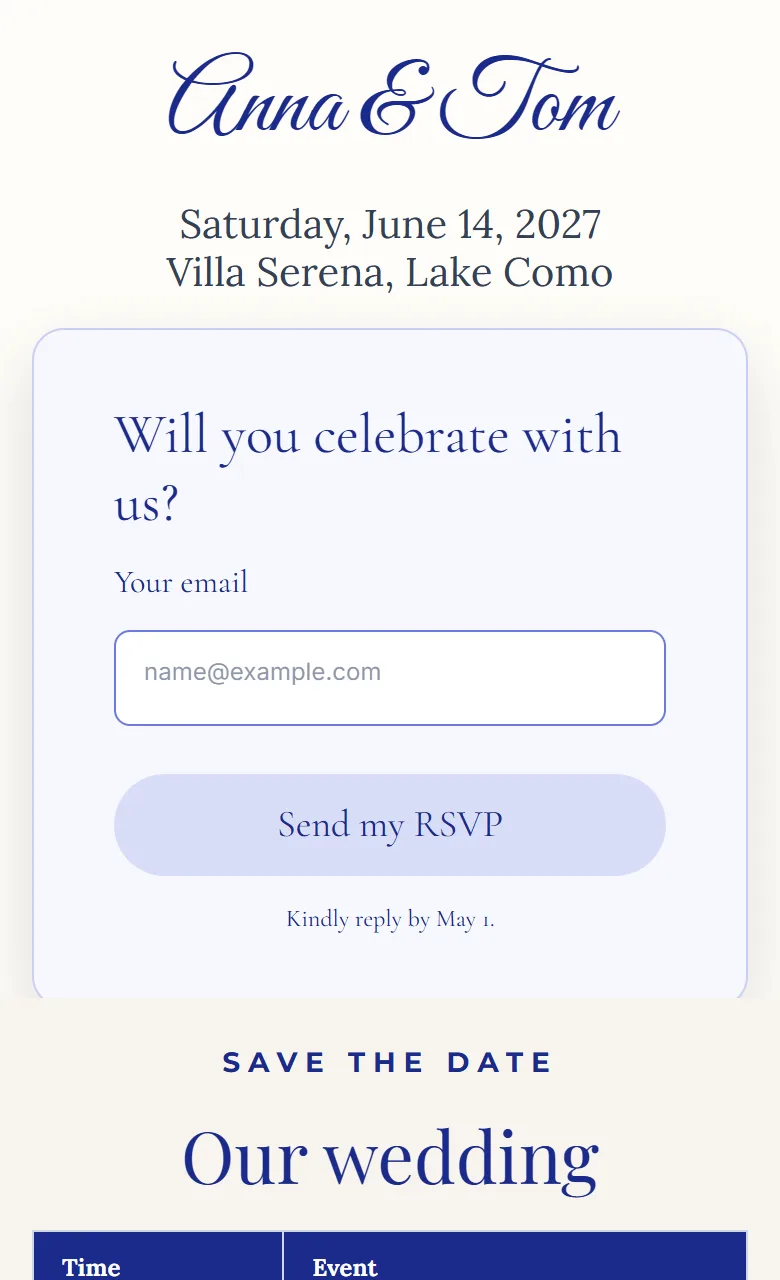
  1. A Pragte wedding invitation on a phone: the couple’s names, the date, the venue and an RSVP form.

    Before

    From the day you publish

    The invitation, the details and the RSVP, open until the date you close it.

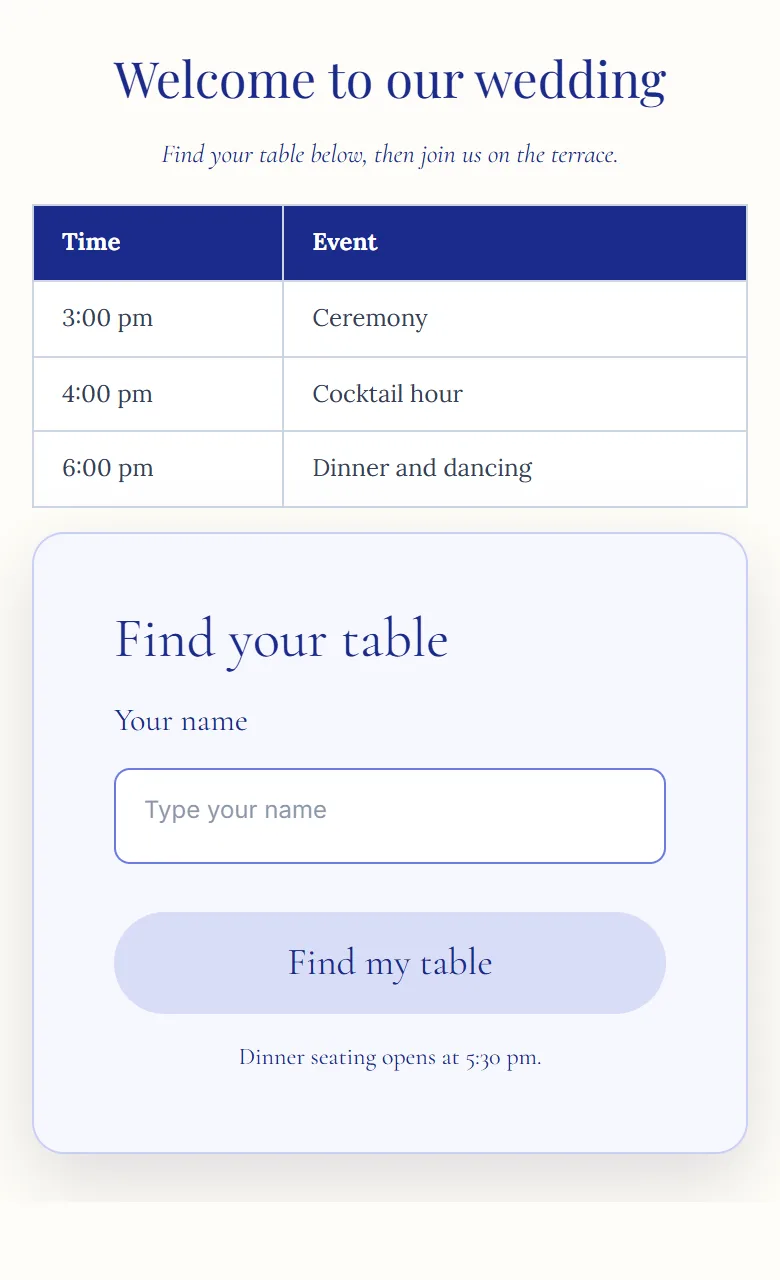
  2. The same link on the wedding day: a welcome, the schedule and a search for your table.

    Wedding day

    From midnight on the day

    A welcome, the running order and a search for your table.

    How guests find their table online

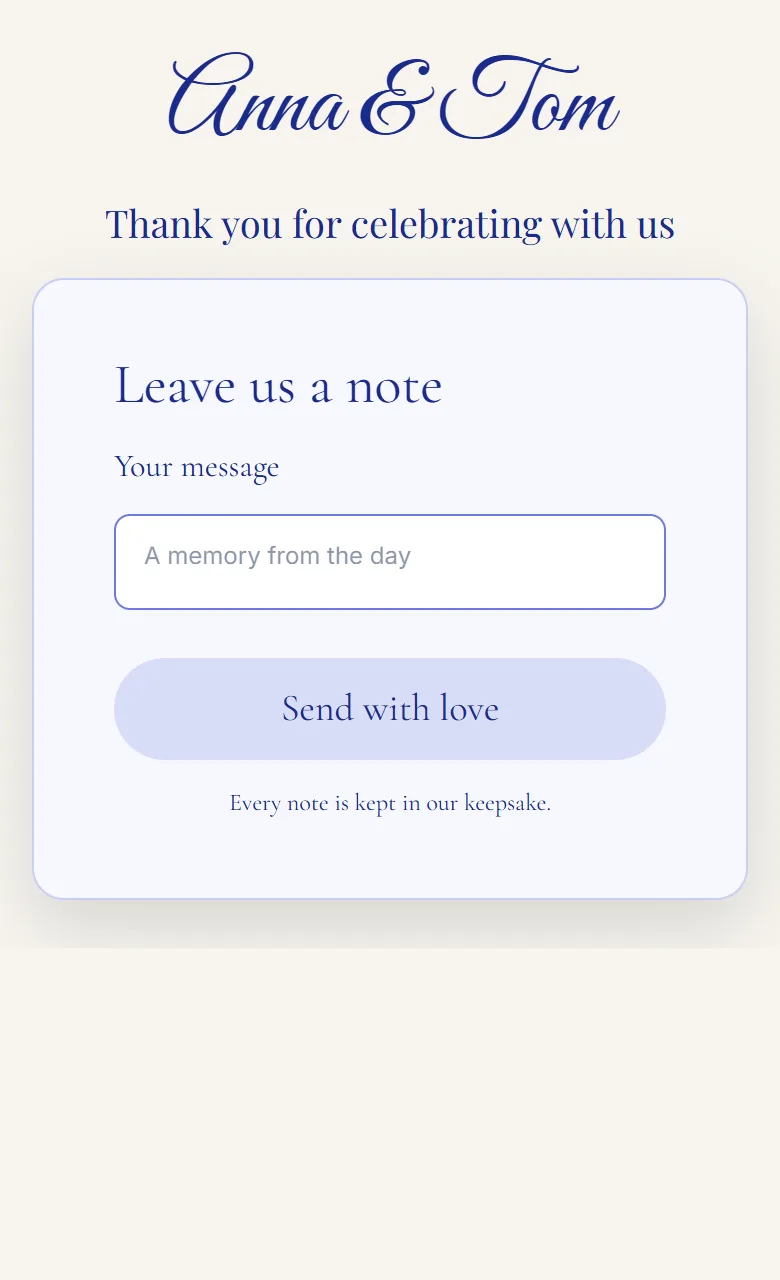
  3. The same link after the wedding: a thank-you and a form for guests to leave a note.

    After

    From the next day

    A thank-you, a place for guests to leave a note, and the photos they shared.

    Your wedding website after the wedding

The dates are yours, and nothing switches unless you set it. If the day runs late, switch the phase by hand from your phone.

Free to build. Paid once, if you want more.

Building, publishing and sharing your wedding website is free, with no expiry date and a small Made with Pragte badge. Essential is $29.99 for 3 months and Keepsake $49.99 for 12 months, paid once: no badge, listing in search engines, an email for every submission, more room for guests’ photos, and your own domain. Nothing renews. When the months end, the site stays online on the Free plan.

See pricing

What it doesn’t do yet

  • No registry. Link to yours with a button; nothing syncs.
  • Photos only: guests can’t upload videos.
  • No download of guests’ photos yet. For an album, ask a couple of guests to send you their originals.
  • No drawn floor plan. Seating is a name search.
  • No screen at the venue showing guests’ photos.
  • The examples above are sample couples, not real weddings.

Wedding websites, answered.

How do I make a wedding website?

Pick a template or a blank page, put in your names, the date, the venue and your photos, check how it looks on a phone, add an RSVP, then publish it and share the link. In Pragte you can also prepare the wedding day’s pages and a thank-you ahead of time, and the site switches to each on the date you set.

Is it free?

Yes. Building, publishing and sharing a wedding website is free, with no expiry date, public or behind a password. A free account has one published site at a time and keeps up to 20, and a free site carries a small Made with Pragte badge.

Can I have a wedding website and another site live at the same time?

On the Free plan, one site is published at a time. A site with a paid plan never counts toward that, so a paid wedding website and a free site for another event can both be live.

What happens when the paid months end?

The site returns to the Free plan’s features. It stays online at the same address, you can still edit it, and its forms keep working. The Made with Pragte badge comes back, the site is no longer listed in search engines, and your own domain stays connected.

Do I need my own domain?

No. Every site works on its own address, such as anna-tom.pragte.site. A paid plan can connect a domain you own: Pragte shows you the one DNS record to add where your domain is kept, then checks it for you until the site is live there.

Can guests RSVP by name?

Yes. The ready-made RSVP asks for Name, Email and Attending, each required, so every RSVP arrives with a name. Guests answer on your site with no app and no account, and you see every submission in one list you can download.

Is my wedding website private?

Free sites are not listed in search engines, so guests reach yours through your link or QR code. To keep everyone else out, give it a password: any site can have one, free or paid.

What should a wedding website include?

Your names, the date and the place; the ceremony and reception addresses, with a map; the running order with times; the dress code; parking, transport and hotels nearby; the RSVP, with the date to answer by; the registry or a note about gifts; and answers to what guests will ask anyway, such as children and plus-ones.

Sending the invitation first? See digital wedding invitations. Not a wedding? See event websites, or read how Pragte works.

Be the first to hear

Your wedding website, ready before the save the dates.

Leave your email and your wedding date. We will tell you first what we add, and help you set it up.

We only use your email for Pragte news. See our Privacy Policy.